
Posters are designed as single large-format visuals, but their content — titles, sections, diagrams, and data — is often exactly what you need for a presentation. Rather than recreating every element from scratch, reconstruction can convert a poster image into an editable PowerPoint layout that you can adapt into one or more slides.
This guide covers how to capture poster images, reconstruct them as editable PowerPoint files, and adapt the layout for standard slide dimensions.
Important
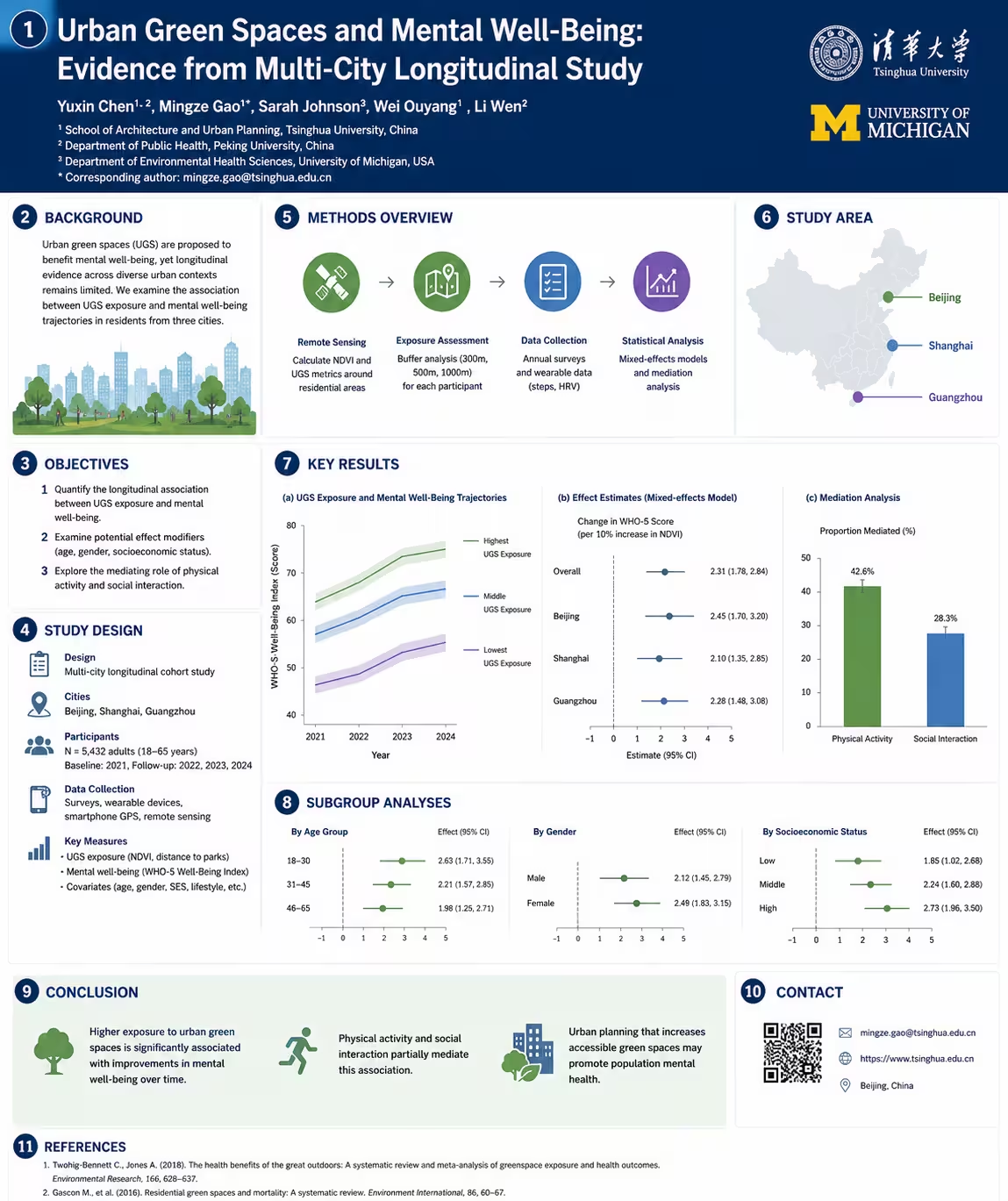
Can you convert a poster to PowerPoint?
Yes. A poster captured as a high-resolution image can be reconstructed into an editable PowerPoint file. The text becomes editable, graphics become separated elements, and the color scheme is preserved.
The output is a starting point, not a finished slide. Posters are usually vertical (A0 or A1) while slides are horizontal (16:9 or 4:3). You will need to rearrange sections, resize text, and possibly split the poster across multiple slides.
| Format | Typical size | Reading pattern | Conversion need |
|---|---|---|---|
| Academic poster | A0 or A1, vertical | Top to bottom, columns | Split into multiple slides |
| Event poster | A2 or digital, various | Visual hierarchy | Extract key info slides |
| Infographic | Wide or square | Flow-based | Adapt to narrative sequence |
| Presentation slide | 16:9 or 4:3, horizontal | Left to right | Ready to present |
What poster types work best?
Posters with clear structure and readable text produce the best reconstruction results.
- Academic research posters with defined sections (Abstract, Methods, Results)
- Conference posters with bold headings and labeled diagrams
- Event posters with clean typography and clear hierarchy
- Infographic posters with charts, icons, and data visualizations
- Marketing posters with product images and feature lists
Best: Academic posters
Structured sections with headings, body text, and diagrams convert cleanly into slide content.
Good: Event posters
Bold headlines and clear dates or locations are easy to extract and reuse.
Fair: Photo-heavy posters
Images reconstruct well, but overlaid text on complex backgrounds may need manual refinement.
Challenging: Artistic posters
Highly stylized typography and decorative layouts may not translate neatly into editable shapes.
How to convert a poster to PowerPoint
For physical posters, photograph them in good lighting with the camera held parallel to the surface. For digital posters, export the original file at the highest available resolution. Once you have the image, the conversion follows three steps.
1. Upload your poster image
Go to Image to PowerPoint and upload the poster image. PNG format is preferred for sharp text and graphics, but JPG and WebP are also accepted.
2. Let SlideRebuild reconstruct the layout
The system detects text regions, graphic elements, and structural sections, then rebuilds them as independent PowerPoint objects. Processing time depends on image size and poster complexity.
3. Review and download your PPTX
Once reconstruction is complete, download the PPTX and open it in PowerPoint. Rearrange sections to fit horizontal slide format, adjust colors for screen viewing, and move secondary information to later slides or speaker notes.
Related workflow
What becomes editable?
Poster reconstruction focuses on elements that are most useful to adapt.
| Element | Result | Notes |
|---|---|---|
| Headings and titles | Editable text boxes | Often the largest text, easiest to recognize |
| Body text and captions | Editable paragraphs | May need resizing for slide format |
| Charts and diagrams | Separated graphics | Can be enlarged or moved to dedicated slides |
| Icons and logos | Isolated shapes | Easy to recolor or replace |
| Background images | Image regions | May need cropping or tone adjustment |
Tips for adapting poster content to slides
Posters and slides are built for different viewing contexts. A poster is designed for someone standing one meter away in a hallway. A slide is designed for an audience seated several meters from a screen. After reconstruction, a few adjustments make the transition much smoother.
| Element | Poster design | Slide adaptation |
|---|---|---|
| Font size | Small body text is acceptable up close | Increase by 30–50% for screen readability |
| White space | Dense layouts maximize printed area | Add breathing room around every element |
| Color contrast | Bold, saturated tones attract attention | Subtle tones reduce eye strain on screens |
| Content density | One page contains everything | Split across 3–5 focused slides |
| Diagrams | Embedded within columns | Enlarge and place on dedicated slides |
A useful rule of thumb is to treat each major poster section as its own slide. The title and abstract become your opening slide. Methods and results each get a dedicated slide with enlarged visuals. Conclusions and references move to the final slides or speaker notes.
Pro tip
Frequently asked questions
Can a portrait poster fit on one landscape slide?
Will the colors look the same on screen as in print?
Can I convert a poster I only have on paper?
What if the poster has a complex background?
Can I use the reconstructed layout as a template?
Reuse your design
Turn your poster into an editable PowerPoint layout
Upload a poster image and reconstruct the text, graphics, and structure as an editable PPTX draft you can adapt into slides.