
If the original PowerPoint file is lost but you still have slide screenshots, PNGs, JPGs, or other page images, you usually do not need to rebuild the entire presentation from scratch.
These images may not preserve the original layers, but they still contain visible text, graphics, icons, colors, and layout information. By recognizing and reconstructing this visible content, you can generate an editable PPTX draft that is much easier to continue working with.
Important
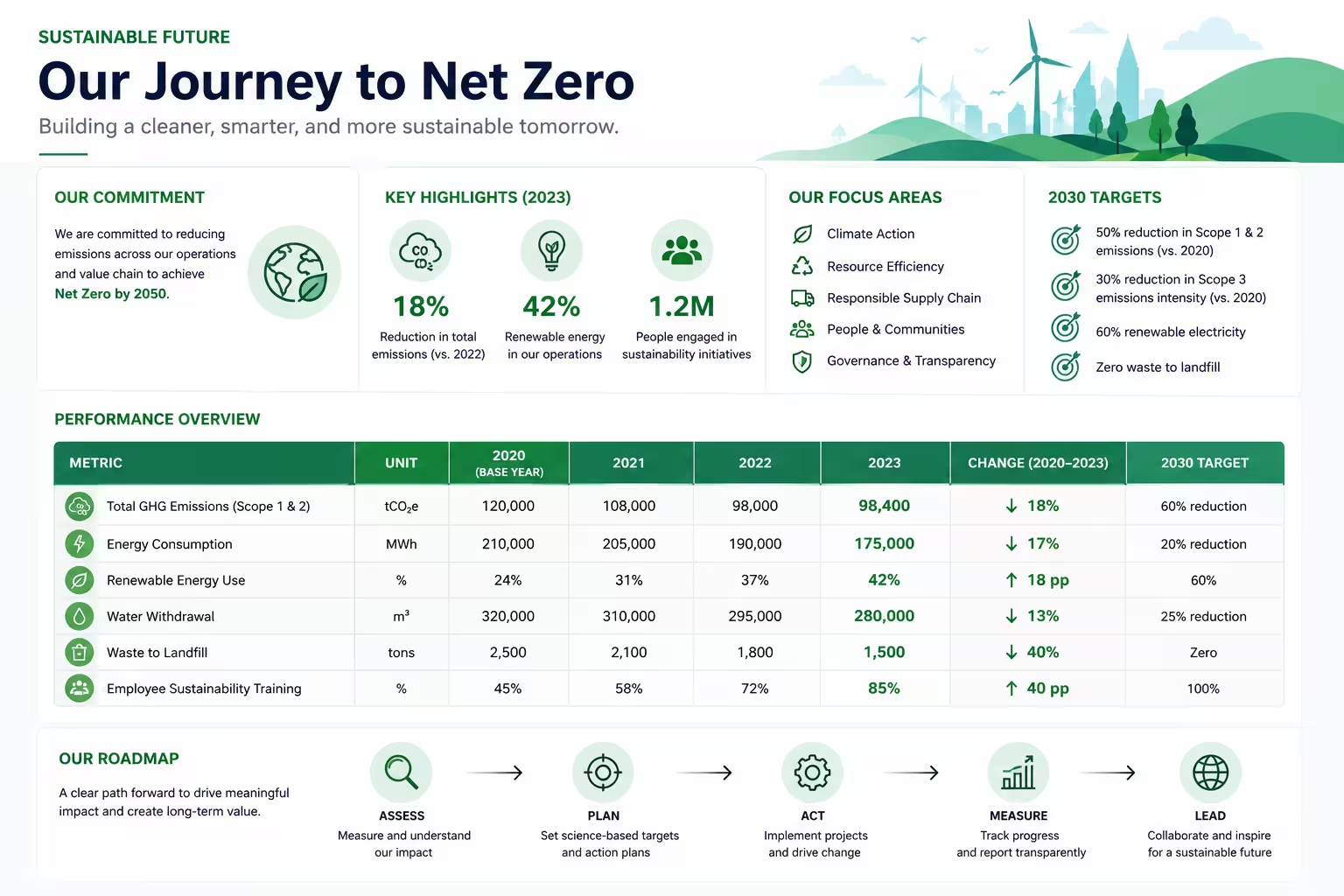
Can you recover a PowerPoint from slide images?
Yes, but the result is a new PowerPoint rebuilt from the visible content of your images, not a complete copy of the original PPTX file.
If you simply insert an image into PowerPoint, the entire slide remains a single flat picture object. You can resize it, but you cannot directly edit the title, body text, or labels inside it. A reconstructed PowerPoint, on the other hand, converts recognizable text into editable text regions and preserves icons, shapes, and visual structure wherever possible. This allows you to update copy, adjust layouts, or reuse old slides in new presentations.
| Approach | Result | Can you edit content? |
|---|---|---|
| Insert image into PowerPoint | One flat picture on a slide | No — the slide is a single image |
| Reconstruct from slide images | Editable text + separated visuals | Yes — text, icons, and layout can be revised |
What slide images can you use?
Common sources of slide images include:
- PNG or JPG images exported directly from PowerPoint
- Screenshots saved from video calls, webinars, or web pages
- Images exported from PDF pages
- Slides that have already become flat images inside a PowerPoint file
- Page images recovered from old computers, chat history, or email attachments
- Photos of presentations taken in classrooms, meetings, or at events
Best: Exported PNG
Sharp edges, lossless text, and consistent colors make reconstruction highly accurate.
Good: High-res screenshot
Clear enough for OCR and layout analysis if the full slide is visible.
Fair: Compressed JPG
Usable, but repeated compression may blur small text and distort edges.
Challenging: Tilted photo
Camera glare, shadows, and skew reduce accuracy. Extra review is needed.
How to recover a lost PowerPoint from images
Use the highest-quality images you have. If you are recovering an entire deck, keep the files in page order before uploading. Once ready, the process follows three simple steps.
1. Upload your slide images
Go to Image to PowerPoint and upload your PNG, JPG, or screenshot files. If you have multiple images, upload them in the order they should appear in the final presentation.
2. Let SlideRebuild reconstruct the slides
The system analyzes each image for readable text, graphic regions, and layout structure. It then rebuilds the visible content as editable PowerPoint slides. This usually takes a short time depending on the number and complexity of the images.
3. Review and download your PPTX
Once reconstruction is complete, download the PPTX and open it in PowerPoint. Compare each slide with the original image, check text accuracy and page order, then make any final adjustments before using or sharing the presentation.
Related workflow
What can become editable?
Clear titles, body paragraphs, labels, and numbers can usually be converted into PowerPoint text boxes. Suitable icons, arrows, and other graphics can be separated from the background so you can resize, move, or replace them later. Simple tables and structural regions can also be reconstructed.
| Content type | Typical result | Notes |
|---|---|---|
| Titles and body text | Editable text boxes | Proofread for OCR errors |
| Icons and arrows | Separated shapes or SVGs | Easy to recolor or replace |
| Simple tables | Rebuilt table structure | Check cell alignment and borders |
| Photos and complex charts | Embedded image regions | Preserved to maintain visual fidelity |
However, not every pixel in an image should become a PowerPoint Shape. Photographs, complex illustrations, and highly detailed charts are often kept as image regions to avoid noticeable loss of visual quality.
Frequently asked questions
Can you recover the exact original PowerPoint from images?
Does text in images become editable?
Will every icon, chart, and image become a PowerPoint Shape?
Can you recover multiple slide images at once?
Is PNG or JPG better for recovery?
Can screenshots or photos be used?
Will the original slide aspect ratio be preserved?
Can the recovered file be edited in Google Slides or Keynote?
What if the PowerPoint exists but every page is an image?
How long does it take to recover a presentation?
Recover your presentation
Turn your slide images back into an editable PowerPoint
Upload one image or a complete slide sequence and rebuild the visible content as an editable PPTX draft.