
Upload your NotebookLM export
Use the original PDF or complete slide images. Each page is reconstructed as a slide draft you can review.
Turn your NotebookLM PDF into an editable presentation, then select and remove watermark elements that have been reconstructed separately. Review each page in the browser and download the revised PPTX.
Click to upload PDF or images
Compare the originals with editable drafts to see how individual elements are separated. These examples demonstrate reconstruction; they do not show a watermark being removed.
Rebuild NotebookLM PDF pages while preserving their structure and visual hierarchy.
Original
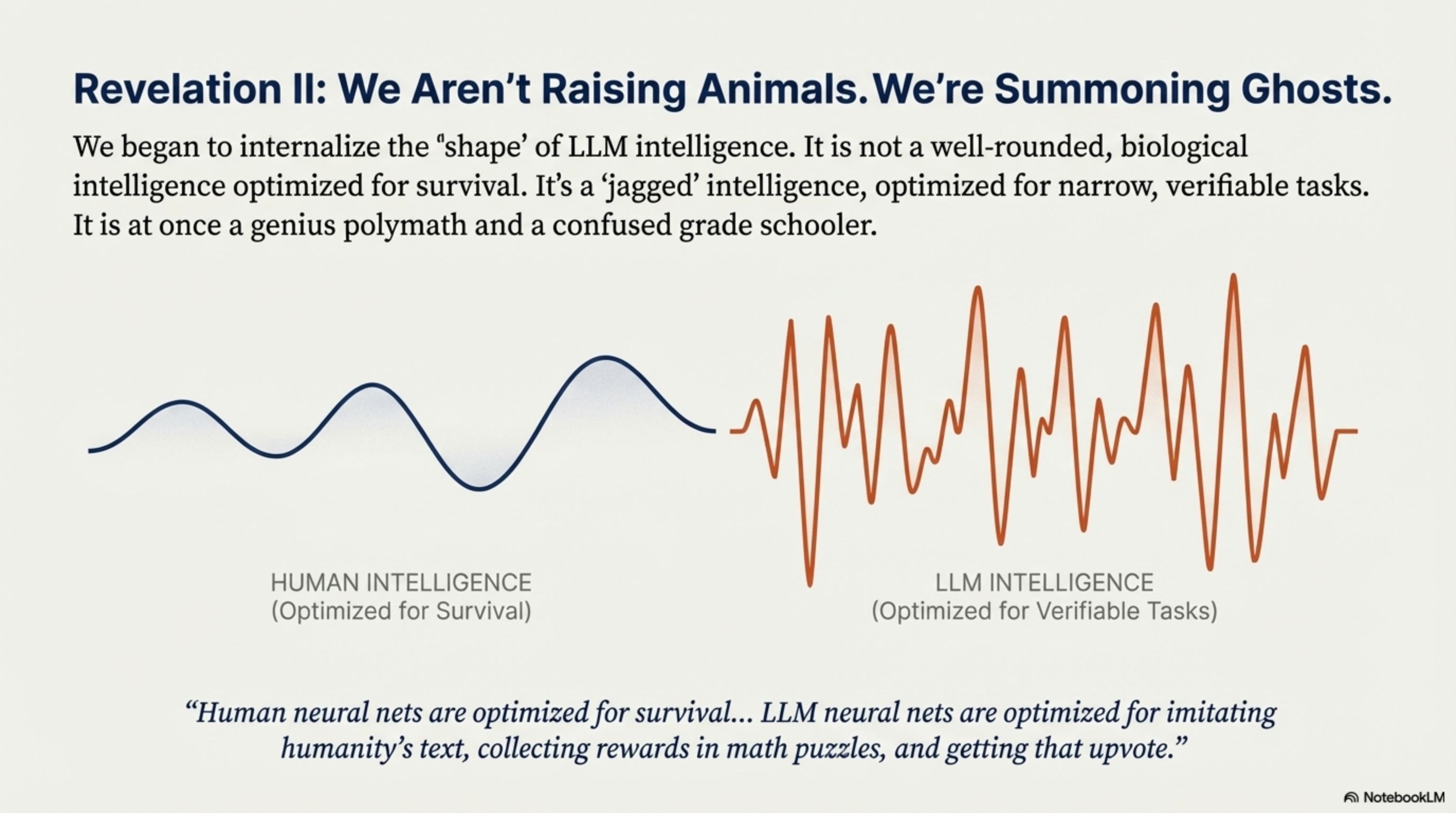
Editable PPT
Human vs. LLM Intelligence
How a watermark is reconstructed determines whether you can remove it independently.
In a NotebookLM export, a watermark can share the same picture as the slide design. Simply inserting that page into a presentation does not let you remove the mark on its own.
SlideRebuild recognizes wording and separates visual regions where possible. If the NotebookLM watermark becomes an independent element, you can select and remove it. A mark still embedded in an illustration or background needs additional image editing.
Reconstruct the deck, inspect the watermark, and remove only the elements you can select independently.
Use the original PDF or complete slide images. Each page is reconstructed as a slide draft you can review.
Open the slide in the editor. If the watermark is a separate element, select it and press Delete to remove it. Compare the area with the original for any remaining details.
Check the remaining pages for marks you want to remove, then download the revised deck. Open the PPTX to review its final appearance before sharing.
Check the selection before you remove it, so nearby content stays intact.
| Reconstruction result | Available edit | What to check |
|---|---|---|
| Separate wording | Select and remove the reconstructed text box. | Check that the box contains only the watermark you want to remove. |
| Isolated logo image | Remove the separate image element. | Check for leftover details in the underlying background. |
| Watermark merged with artwork | You cannot remove it independently in this editor. | Use a separate image editor if further cleanup is needed. |
Decide what to remove, what to keep, and what to restyle before sharing.
Select a separately reconstructed watermark or footer element and remove it without discarding the rest of the slide.
Adjust recognized wording, fonts, and colors to bring your NotebookLM draft closer to your presentation style.
Before you remove a watermark, check nearby citations and source labels so useful references stay in your NotebookLM deck.
Answers about NotebookLM watermarks, editable elements, and output files.
Choose the workflow that matches the source file you already have.
Inspect the editable result, remove isolated marks, and export a revised presentation.