
A scanned PDF looks like a document, but underneath it is just a series of images. You can read the words on the screen, yet you cannot select, copy, or edit them. When you need those pages as an editable presentation, reconstruction offers a practical path forward.
This guide covers how to convert scanned PDF pages into editable PowerPoint slides. The process treats each page as an image, recognizes the visible text and structure, and rebuilds it as a PPTX draft you can continue working with.
Important
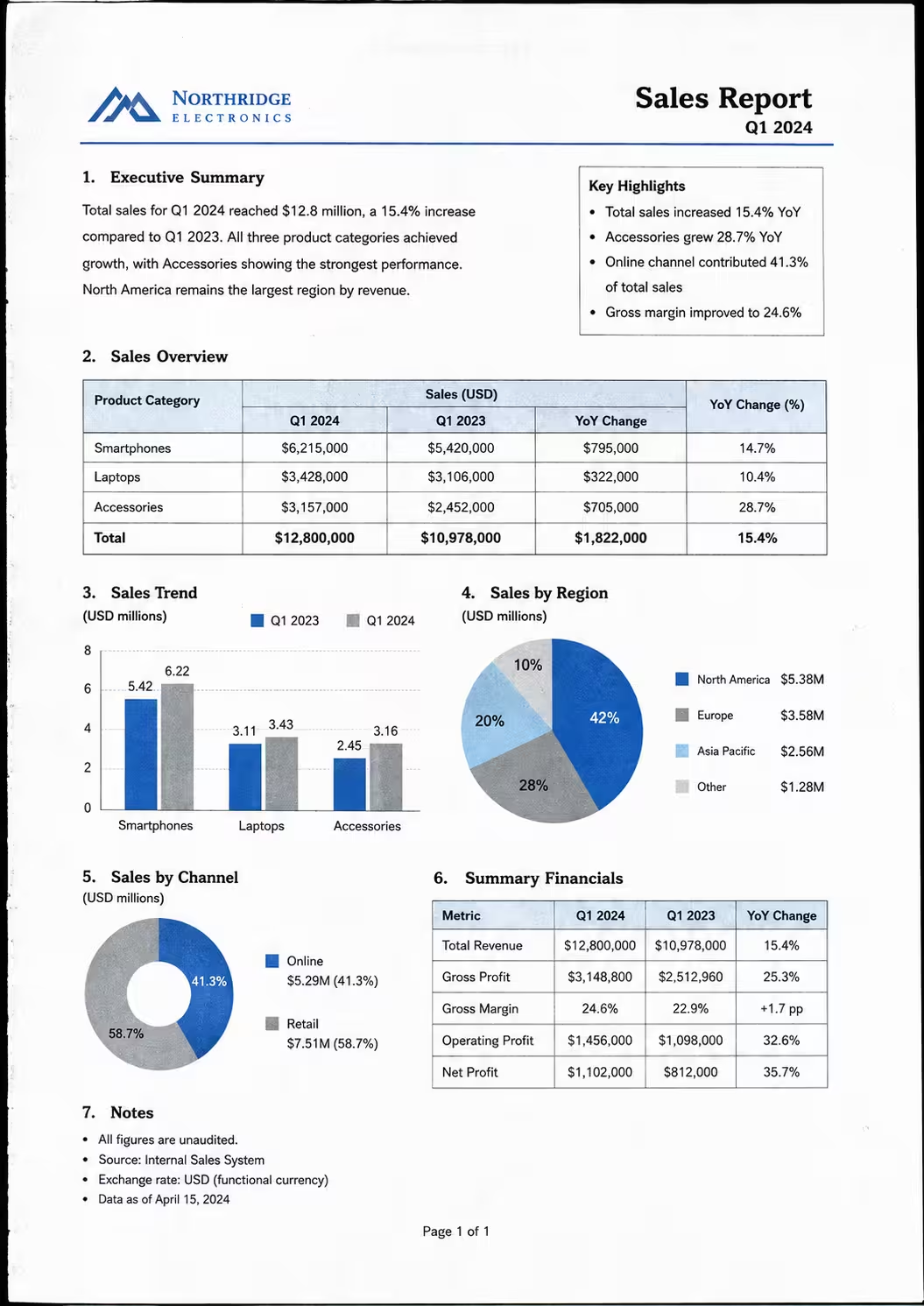
Can you convert a scanned PDF to PowerPoint?
Yes. Each page of a scanned PDF is essentially a photograph of a document. By exporting those pages as images and reconstructing them, you can create a PowerPoint file with editable text and separated graphics.
This is different from converting a native PDF, where text and shapes are already defined as digital objects. With scanned PDFs, the reconstruction process must first read the image, then interpret the layout, and finally recreate the elements in PowerPoint format.
| PDF type | Content | Conversion approach |
|---|---|---|
| Native PDF | Digital text and vector shapes | Direct extraction or import |
| Scanned PDF | Flat images of document pages | Image reconstruction + OCR |
What is a scanned PDF?
A scanned PDF is created when a physical document is fed through a scanner or photographed, and the resulting images are saved as a PDF file. The file may look like a normal document, but it contains no actual text data — only pictures of text.
- Text cannot be selected, copied, or searched
- The page is one flat image or a collection of image strips
- There are no editable shapes, tables, or vector graphics
- File size is often larger than a native PDF with the same content
Flat image pages
Every page is a photograph. What you see is exactly what can be reconstructed.
No embedded fonts
The original typeface information is lost. Reconstruction assigns the closest available font.
Physical artifacts
Skew, shadows, creases, and paper texture may appear in the scan and affect accuracy.
Multi-page files
A single scanned PDF may contain dozens of pages. Each page is processed as a separate image.
How to convert a scanned PDF to PowerPoint
Confirm that your PDF is scanned by trying to select text — if nothing is selectable, it is a scanned document. Once confirmed, the conversion follows three steps.
1. Upload your scanned PDF
Go to PDF to PowerPoint and upload the scanned PDF. The tool handles page extraction and reconstruction in one step, so you do not need to manually export images first.
2. Let SlideRebuild reconstruct the slides
The system extracts each page, analyzes readable text, graphic regions, tables, and structural layouts, then rebuilds them as editable PowerPoint slides. Processing time depends on page count and scan quality.
3. Review and download your PPTX
Once reconstruction is complete, download the PPTX and open it in PowerPoint. Compare each slide with the original PDF page, check text accuracy and table structure, then make any final adjustments.
Related workflow
What can become editable?
The reconstruction result depends on the clarity of the scan and the complexity of the original document.
| Content | Typical result | Notes |
|---|---|---|
| Clear printed text | Editable text boxes | Best results with high-resolution scans |
| Tables and forms | Rebuilt table structure | Check cell borders and alignment |
| Diagrams and charts | Separated graphic regions | May remain as images if complex |
| Handwritten notes | Usually remains as image | OCR accuracy for handwriting is limited |
Common scan problems and how to fix them
Scanned PDFs inherit every imperfection from the physical document and the scanning process. A few minutes of preparation can dramatically improve reconstruction accuracy.
| Problem | Why it happens | How to fix |
|---|---|---|
| Skewed pages | Document was not aligned on the scanner bed | Use the scanner's auto-deskew feature, or rotate the image in any photo editor before uploading |
| Shadows and dark edges | Scanner lid did not close fully or document is thick | Rescan with even pressure, or increase brightness and contrast in a PDF viewer |
| Blurred text | Low resolution scan or motion during capture | Rescan at 300 DPI or higher. Keep the document flat and the scanner glass clean |
| Low contrast | Faded ink or economy scanner settings | Increase contrast so text stands out clearly from the background |
| Black margins and borders | Scanner captures the entire bed including empty space | Crop the page to remove blank margins before uploading |
| Mixed page orientations | Some pages were scanned in portrait and others in landscape | Rotate pages to a consistent orientation in your PDF viewer |
Pro tip
Frequently asked questions
Can I convert a scanned PDF without extracting images first?
Will the reconstructed slide match the original exactly?
How do I improve accuracy for poor-quality scans?
Can tables in scanned PDFs become editable?
What about multi-page scanned PDFs?
Reclaim your content
Turn scanned PDF pages into editable PowerPoint slides
Upload scanned PDF pages and reconstruct the visible text, tables, and graphics as an editable PPTX draft.