
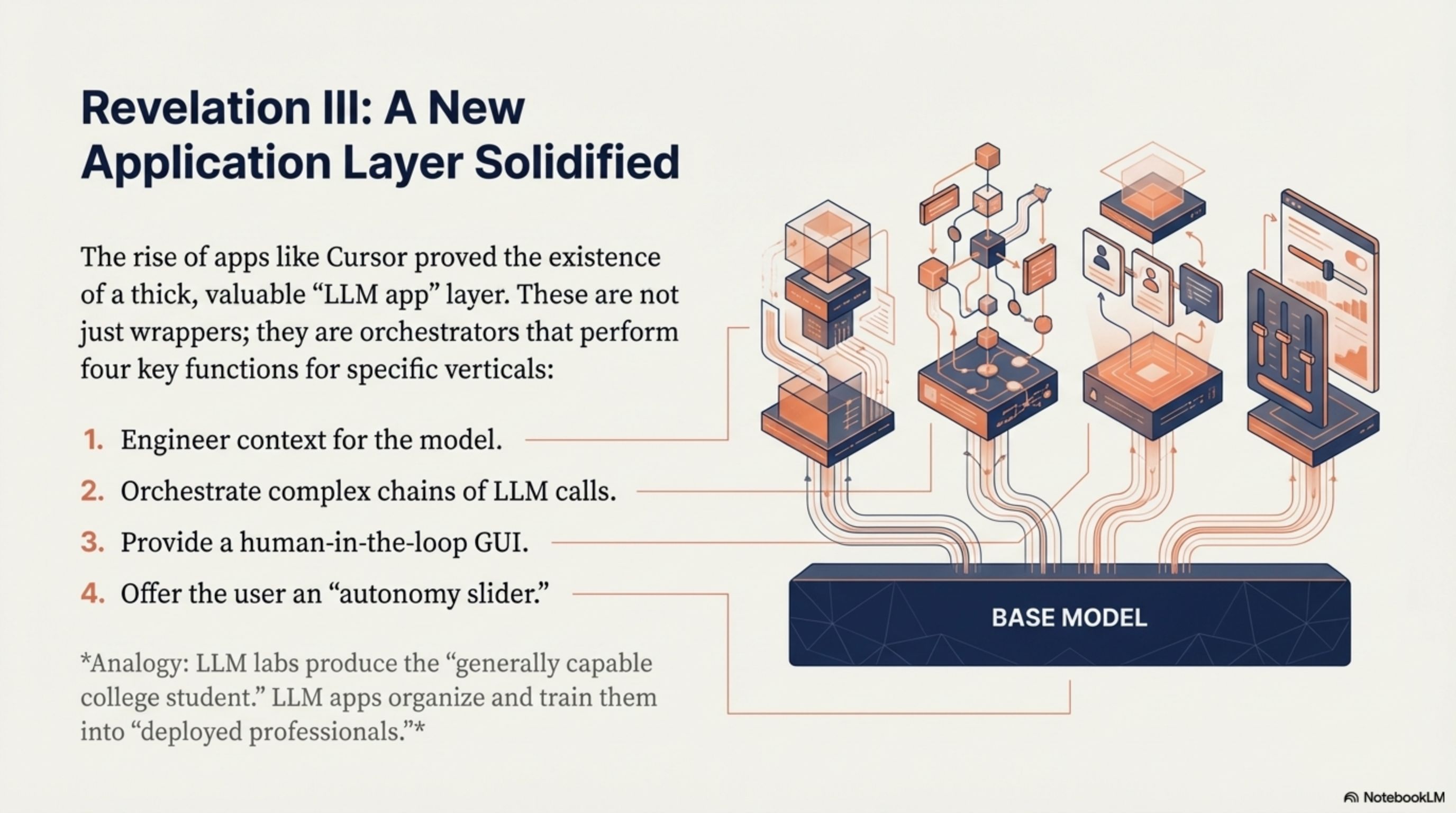
NotebookLM can turn source material into a useful presentation draft, but the exported PDF is not designed for continued editing. If you need to correct the wording, apply company fonts, update colors, or adapt the slides for a specific audience, converting the PDF to PowerPoint gives you a more practical starting point.
This guide explains how to rebuild a NotebookLM slide deck as an editable PPTX draft, then update its content and layout in PowerPoint without recreating every page from scratch.
Important
Why convert a NotebookLM presentation to PowerPoint?
A NotebookLM PDF is useful for viewing and sharing, but each page is a finished output rather than a set of PowerPoint objects. You cannot directly select a heading, move an illustration, or apply your own presentation theme to the exported page.
Rebuilding the PDF as a PPTX separates the content that can be edited while preserving complex visual regions where necessary. The result is an editable draft you can proofread, reorganize, restyle, and present.
| Format | Best for | Editing options |
|---|---|---|
| NotebookLM PDF | Reviewing or sharing the generated deck | Limited to annotations and page-level changes |
| Rebuilt PowerPoint | Editing and reusing the presentation | Edit copy, reposition elements, and update the styling |
| Manual recreation | Building every slide from the beginning | Full control, but requires substantially more time |
How to prepare the NotebookLM PDF
Start with the cleanest export available. A complete, high-quality PDF gives the reconstruction process more reliable text, graphics, and page boundaries to work with.
- Export the full presentation directly from NotebookLM as a PDF
- Check that every slide is present and appears in the correct order
- Make sure no page is cropped, blank, or duplicated
- Use the original PDF instead of screenshots of individual pages
- Keep a copy of the PDF for side-by-side review after conversion
Best: Original PDF export
Complete pages and consistent resolution provide the clearest source for reconstruction.
Good: Complete page images
High-resolution page images can work when the original PDF is no longer available.
Review carefully: Small citations
Fine print, source labels, and footnotes may need extra proofreading in the rebuilt deck.
Avoid: Cropped screenshots
Missing edges and browser controls can interfere with layout detection and page reconstruction.
How to convert a NotebookLM presentation to PowerPoint
Once you have checked the exported PDF, the conversion follows three steps. Each PDF page is processed in sequence and becomes a corresponding slide in the rebuilt deck.
1. Export and upload the NotebookLM PDF
Export the presentation from NotebookLM, then go to NotebookLM PDF to PPTX and upload the PDF. You do not need to separate the pages into images before uploading.
2. Let SlideRebuild reconstruct the slides
SlideRebuild renders each PDF page, detects readable text and visual regions, and rebuilds the layout as a PowerPoint slide. Pages remain in their original order, while complex illustrations may be preserved as positioned image elements.
3. Review and download your PPTX
Review the generated previews, download the PPTX, and open it in PowerPoint. Compare the slides with the original PDF before changing fonts, colors, spacing, or repeated design elements.
Related workflow
What becomes editable?
Reconstruction prioritizes the parts of the presentation that are most useful to revise. The exact result depends on page quality and visual complexity.
| Content type | Typical result | What to review |
|---|---|---|
| Headings and body copy | Editable text boxes | Wording, line breaks, and font match |
| Simple panels and dividers | Editable shapes where possible | Fill colors, borders, and spacing |
| Illustrations and photos | Positioned image regions | Crop boundaries and alignment |
| Charts and diagrams | Editable labels with preserved visual regions | Numbers, legends, and connector placement |
| Citations and footnotes | Editable text when readable | Names, punctuation, and source details |
Not every visual should be converted into a native PowerPoint shape. Detailed artwork, textures, and generated illustrations are often kept as image regions because that preserves their appearance more reliably.
How to edit the rebuilt presentation
Treat the reconstructed PPTX as an editable first draft. Start by correcting the content, then update repeated styles across the full deck instead of adjusting slides one at a time.
- Proofread headings, summaries, citations, numbers, and proper names
- Replace approximate fonts with the typefaces you want to use
- Adjust colors across editable text and shapes
- Standardize title positions, margins, and repeated content blocks
- Add or replace logos, footers, slide numbers, and labels
- Replace generated charts when you need editable source data
- Check contrast, reading order, and alt text before presenting
If several slides use the same heading, card, or footer style, update those elements as a group. Consistent formatting makes the rebuilt deck feel intentional and reduces distracting differences from one slide to the next. If the presentation needs to follow a brand system, this is also the stage to apply approved fonts, colors, and logo treatments.
Frequently asked questions
How do I turn a NotebookLM presentation into PowerPoint?
Does each PDF page become one PowerPoint slide?
Will all NotebookLM text become editable?
Can I apply my PowerPoint theme to the rebuilt deck?
Can I edit the PPTX in Google Slides or Keynote?
Is SlideRebuild affiliated with Google or NotebookLM?
Make the deck editable
Convert and edit your NotebookLM presentation
Upload the exported PDF and rebuild its visible text, graphics, and page layouts as an editable PPTX draft ready to update and reuse.